

South East Customers - How to fix connection issues with your Linksys router?
If you are a Community Fibre South East customer using WiFi 6 router (square-shaped on top) please follow the instructions below. If you are a Community Fibre South East customer using a WiFi 7 router (droplet-shaped on top), please scroll down the page for instructions.
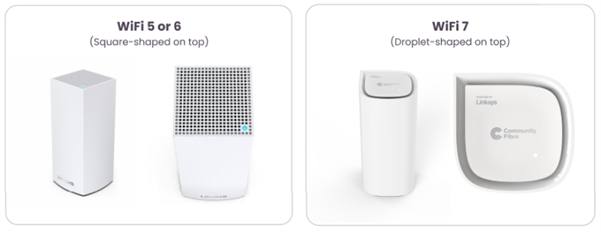
If you are a Community Fibre South East customer using a Linksys WiFi 6 router (square-shaped on top), please follow these steps:
- If your router is showing a purple light, you can proceed with the troubleshooting steps provided.
- If your router is showing a red light, you will need to reset it first. Press and hold the reset button for 30–40 seconds until the light turns blue.
- Once the light is blue, the router is ready for setup and you can follow the troubleshooting steps.
To follow the configuration instructions, you will need to connect to the network, either via WiFi or via ethernet cable to reconfigure your equipment.
If you do not have an ethernet cable. Your WiFi network should still be available on your device, you will be able to connect to the WiFi but you will have no internet access, it means your device is successfully linked to the local network but cannot reach the wider internet.
Linksys router reconfiguration:
-
Login to the web interface. Please see article: Linksys Router - How do I login to the web interface.
-
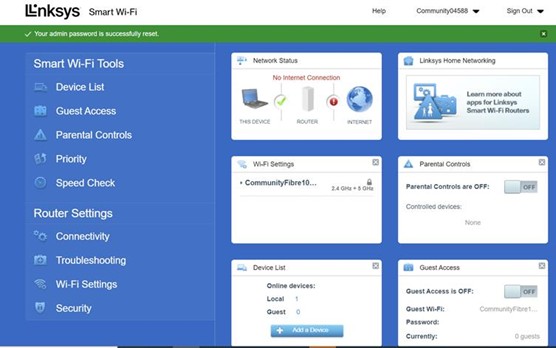
Once you're logged in, you should see this screen.
-
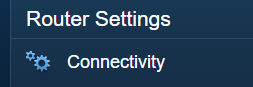
Go to ‘Connectivity’. Then select the ‘Internet Settings’
-
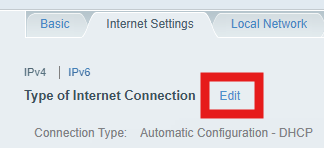
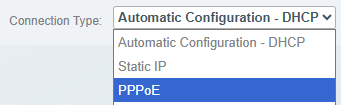
Click on the 'Edit' and select PPPoE from the drop-down menu.
-
Enter the following details:
Username: UPRN@boxbb.uk (if you are unsure of your UPRN number, please contact us) Password: Juniper
- Leave the rest of the fields empty and click Save. Once the router light changes to solid blue, your internet service should be back online.
If you are a Community Fibre South East customer using a Linksys WiFi 7 router (droplet-shaped on top), please follow these steps:
-
If your router is showing a blue light, you can proceed with the troubleshooting steps provided.
-
If your router is showing a red light, you will need to reset it first. Press and hold the reset button for 30–40 seconds until the light turns blue.
-
Once the light is blue, the router is ready for setup and you can follow the troubleshooting steps.
To follow the configuration instructions, you will need to connect to the network, either via WiFi or via ethernet cable to reconfigure your equipment.
If you do not have an ethernet cable your WiFi network should still be available on your device, you will be able to connect to the WiFi but you will have no internet access, it means your device is successfully linked to the local network but cannot reach the wider internet.
Linksys router reconfiguration:
-
Login to the web interface. Please see article: Linksys Now - How do I login to the web interface.
-
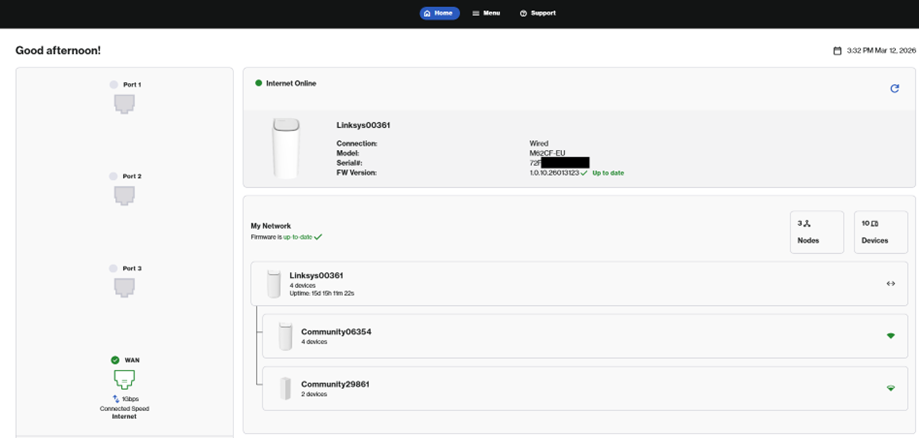
Once you're logged in, you should see this screen:
-
Go to Menu, Advanced Settings and then Internet Settings.

-
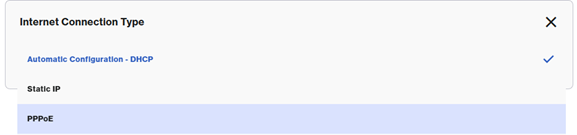
Click on the Pencil icon and select PPPoE from the drop-down menu.

-
Enter the following details:
Username: UPRN@boxbb.uk (if you are unsure of your UPRN number, please contact us) Password: Juniper
- Leave the rest of the fields empty and click Save
Once the router light changes to solid white, your internet service should be back online.

